
Custom Detection allows you to create your own unique detection scenarios and detect certain objects with your Arlo camera. You can decide if you want events and notifications for a single state or both by scheduling your custom detection.
Note: Custom Detection requires an Arlo Secure Plus plan.
To create a schedule for Custom Detections:
- Launch the Arlo Secure App.
- Tap

- Select the Location with a Plus or Premium plan.
- Tap Custom Detection.
- Select your Custom Detection.
Note: If you have not set up Custom Detection, visit: What is Arlo Custom Detection and how do I set it up? - Tap Add next to Schedule.
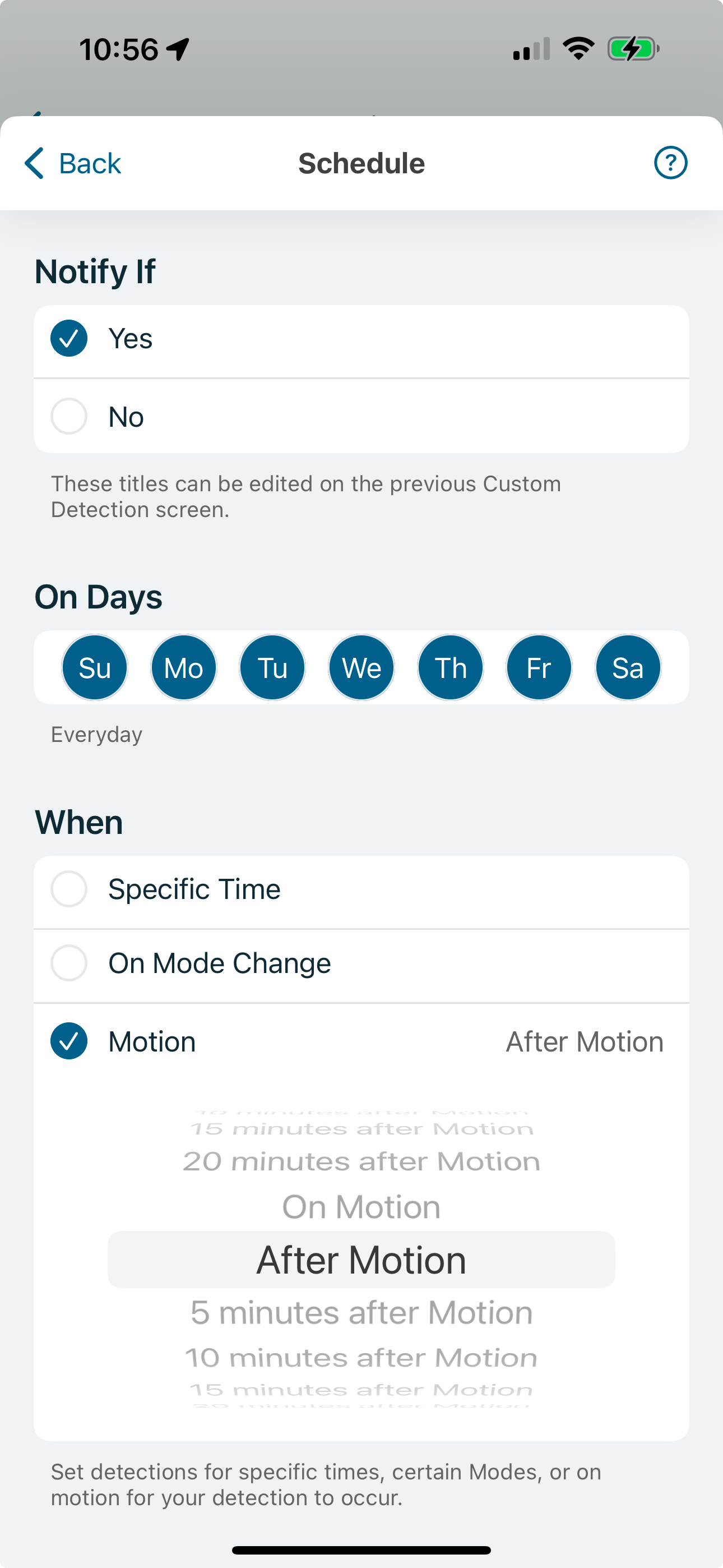
- Select the Notify If option (Open, Closed, On, Off, etc.).
- Under On Days, select the days of the week.
- Under When, select Specific Time, On Mode Change, or Motion.
Note: Under Motion, you can set the trigger to occur at the start of the motion event or after the motion event. When selecting After Motion, the Custom Detection will trigger as the motion event ends. Additionally, you can choose a time after the motion event ends to trigger the Custom Detection (5, 10, 15, or 20 minutes). This will start a timer for the selected time after the motion ends which will trigger the Custom Detection when the timer finishes.
- Tap Next.
- Tap Done.