
The Arlo Essential Security Camera and Essential XL Security Cameras (3rd Gen) are installed using Bluetooth technology. Some packaging in the US also uses the name Outdoor Security Camera for this device. It is the same model and can be installed using the same instructions below.
The camera comes partially charged. Before setup, charge the camera until the status LED on the front of the camera turns solid blue.
Download and launch Arlo Secure App. Navigate to Devices and tap +, select Cameras > Essential Series > Battery Cameras > Security Camera (3rd Gen), and follow the prompts. A QR code is available to scan with your mobile device in the Quick Start Guide and on the box packaging to streamline the installation experience.
You need the following before installation:
- Arlo Secure App
- Wi-Fi network
- Bluetooth-enabled mobile device
- Arlo SmartHub (optional)
Need Help?
If you need help installing your new Arlo device, you can reach Arlo Support via the Need Help? button in the Arlo Secure App or on my.arlo.com. You may also join the Arlo Community where you can seek advice and solutions from experts and other Arlo customers.
To set up the Arlo Essential Security Camera (3rd Gen):
- Launch the Arlo Secure App.
- Tap Devices.
Note: Make sure the correct Location where you want to add the device is selected. For more information, visit: How do I switch my Location in the Arlo Secure App? - Tap +
- Select Cameras > Essential Series > Battery Cameras > Security Camera (3rd Gen).
- Check that the camera has a pairing button on the top and tap Continue.
- The app will verify you have upgraded to the new Arlo Secure App and have enabled Bluetooth. Make sure to give the Arlo Secure App permission to use Bluetooth.
- Press and hold the Pairing Button for up to 3 seconds.
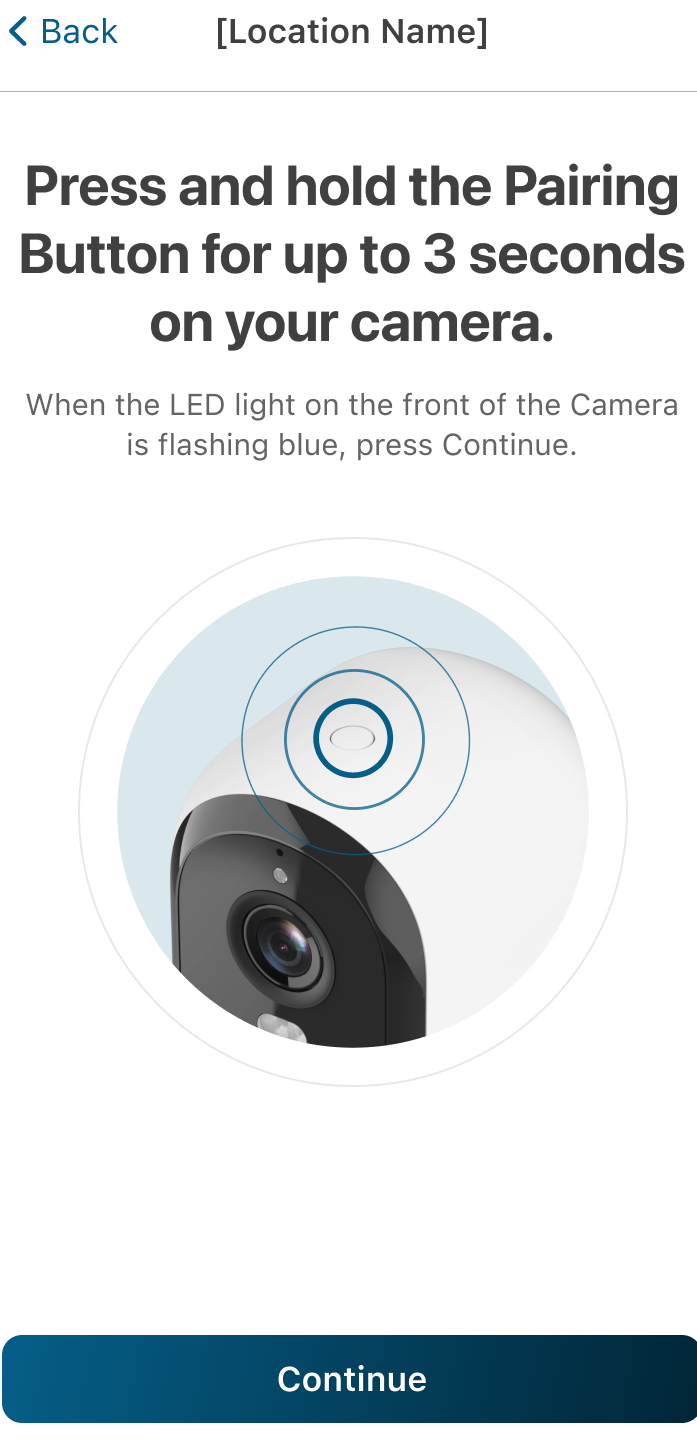
- When the LED is flashing blue, tap Continue.
- When your device is detected, tap Continue.
- Select the connection you want to use for your Arlo camera.
- For Wi-Fi Installation:
- Select the Wi-Fi network that you want to use, and tap Continue.
- Enter your Password and tap Continue.
- For SmartHub Installation:
- Tap Connect with SmartHub.
- If you have one SmartHub, tap Continue. If you have multiple SmartHubs, select the one you want to use.
- For Wi-Fi Installation:
- Arlo will begin looking for your camera.
- After the camera is found, name your Arlo camera and tap Continue.
- Follow the in-app prompts for firmware updates, mounting, and placement.
For more information, visit:
- Arlo Camera Placement Tips
- Arlo SmartHub and Base Station Compatibility
- How do I enable Bluetooth on my mobile device for the Arlo Secure App?
- What are the minimum requirements for installing and using an Arlo system?
- How do I connect my mobile device to a 2.4 GHz Wi-Fi network to set up my Arlo camera?
- How do I connect my Arlo Camera or Video Doorbell to an Arlo SmartHub or Base Station?