
Arlo Essential Pan Tilt Security and Pan Tilt Indoor Cameras are installed via Bluetooth.
You will need the following before installing your Arlo device:
- 2.4Ghz or 5GHz Wi-Fi network
- Bluetooth-enabled mobile device
- Arlo Secure App 4.0
Need Help?
If you need help installing your new Arlo device, you can reach Arlo Support via the Need Help? button in the Arlo Secure App or on my.arlo.com. You may also join the Arlo Community where you can seek advice and solutions from experts and other Arlo customers.
To set up an Arlo Essential Pan Tilt Camera:
- Launch the Arlo Secure App.
- Tap Devices.
Note: Make sure the correct Location where you want to add the device is selected. For more information, visit: How do I switch my Location in the Arlo Secure App? - Tap +
- Select Cameras > Essential Series > Plug-In Cameras > Pan Tilt Security Camera or Pan Tilt Indoor Camera.
- The app will verify that you have upgraded to the new Arlo Secure App and have enabled Bluetooth.
- Plug in your camera and press and hold the Pairing Button for up to 3 seconds.
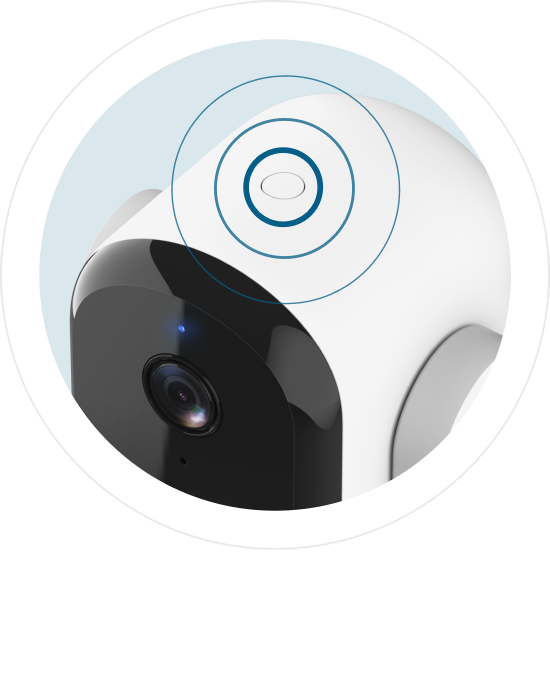
- When the LED is flashing blue, tap Continue.
- Find a location to place the camera that is near an outlet and within range of your Wi-Fi network.
- Select the connection you want to use for your Arlo camera.
- Select one of your saved Wi-Fi networks and tap Continue.
- If you want to use a new network, tap Find a New Network. Select the network and enter your password.
- Arlo will begin looking for your camera. After the camera is found, name your Arlo camera and tap Continue.
- Once any necessary firmware updates are performed, you can mount your camera using the instructions provided in-app.
- When your camera shows as active, tap Finish.
For more information, visit: