
Ensure Arlo Custom Mode is enabled and set up before attempting to create a Geofence. If you have Custom Mode enabled, you can use Geofence to discover when someone enters or exits a pre-defined zone.
To create an Arrive/Leave Automation for Arm Away, Arm Home, or Standby Mode, visit: What are Arrive/Leave Automations and how do I set it up for my Arlo system?
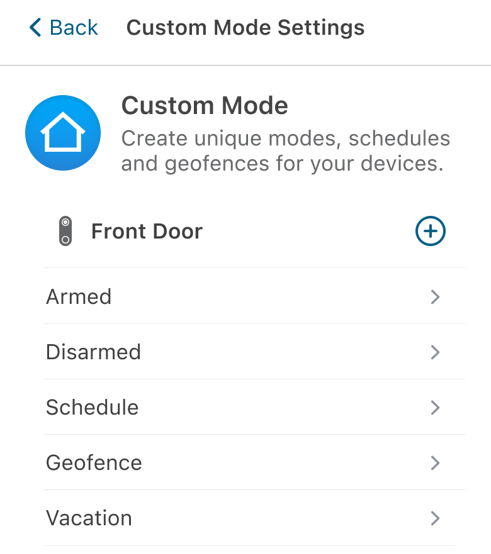
To create a Geofence for Custom Mode:
- Launch the Arlo Secure App.
- Tap Routines.
- Tap Custom Mode.
- Tap Geofence under the device of your choice.
- Tap Edit Geofence to adjust the geofence perimeter.
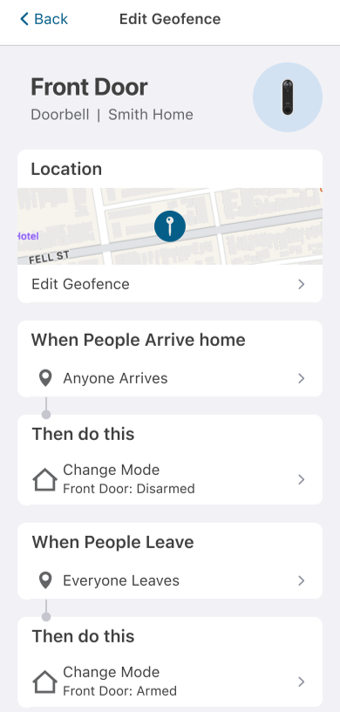
- Tap When People Arrive to add specific people or that will trigger the action.
- Tap Change Mode under Then do this to edit actions when someone arrives.
- Tap Everyone Leaves under When People Leave to add specific people or that will trigger the action.
- Tap Change Mode under Then do this to edit actions when someone leaves.
Enable Location Services
Location services permissions are required to be enabled on your mobile device for the Geofence to work properly:
For Android devices:
By default, your Android device enables the overall location service, though you need to grant permission to each app you install. If location services have been turned off for your Android device:
- In Location settings, ensure Location is set to On, and Improve Accuracy is enabled for Wi-Fi Scanning and Bluetooth Scanning.
- In the Android Settings for Apps, ensure the Arlo Secure App has the Location Permission set to Allow all the time.
For iOS devices:
If location services have been disabled for your iOS device:
- Go to your device Settings, scroll to the bottom of the screen, and tap Apps.
- Tap Arlo Secure.
- Ensure Location access is set to Always and Precise Location is set to On.
For all devices:
Ensure Wi-Fi is enabled. Enabling Wi-Fi on your mobile device improves location accuracy, even if you are not connected to a Wi-Fi network.