The Arlo Custom Mode feature allows you to create unique modes, schedules, and geofences for your Arlo devices. This mode is used for device specific rules. Custom modes can be set individually for cameras that are connected directly to Wi-Fi. Cameras connected to an Arlo SmartHub or Base Station can only have a single custom mode active at a time, but may have multiple rules for different cameras within the single mode.
Notes:
- Availability of the Arlo Custom Mode feature may vary due to gradual roll out.
- Arlo Baby, Arlo Q, and Arlo Q Plus are not compatible with the Custom Mode feature.
Schedules, Arrive/Leave, Arm Away, Arm Home, and Standby will be disabled when using Custom Mode.
To set up an Arlo Custom Mode:
- Launch the Arlo Secure App.
- Tap Routines.
- Tap

- Tap the Custom Mode switch to enable the feature.
- Tap Done.
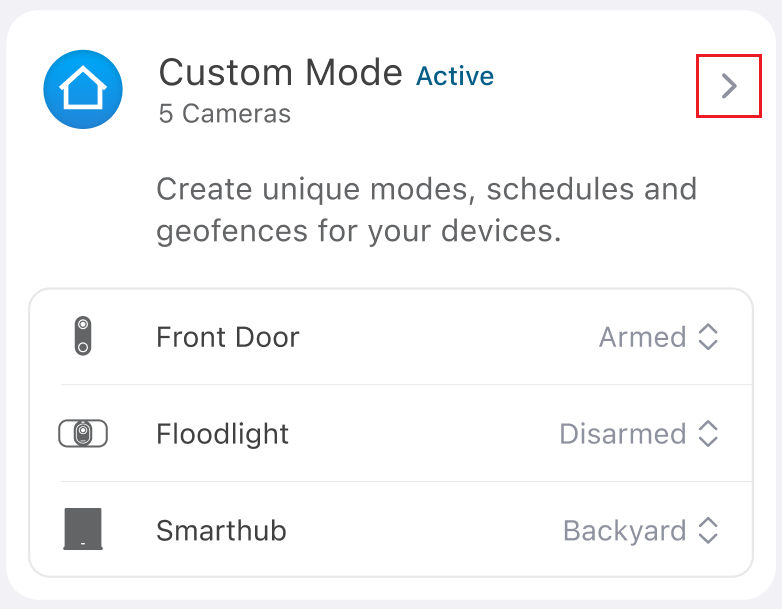
Custom Mode will display as a fourth mode below Standby. - Tap the Custom Mode icon to activate the mode.
The Custom Mode icon will illuminate blue when the mode is active.
 - To create a new Custom Mode, tap the Custom Mode arrow icon >.
- Tap
 next to the device.
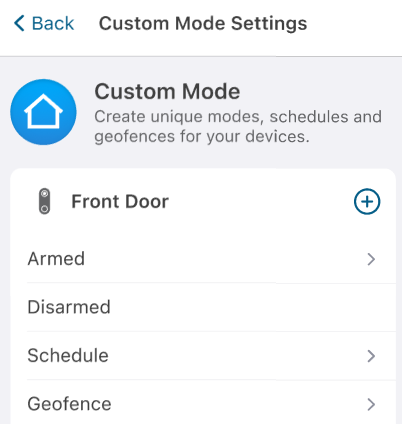
Note: If you are creating a new Custom Mode for a SmartHub/Base Station, tap next to the SmartHub/Base Station and then select any device listed that is connected to the SmartHub/Base Station and tap Next. - Type the Name of the Custom Mode.
- Tap the Add icon next to Device Rules.
- Under When this happens, select an available option such as Motion Detection and/or Audio Detection.
- Under Then do this, select an available option such as Record Video, Activate Siren, or Send Notification.
- Tap Done.
- Tap Save.
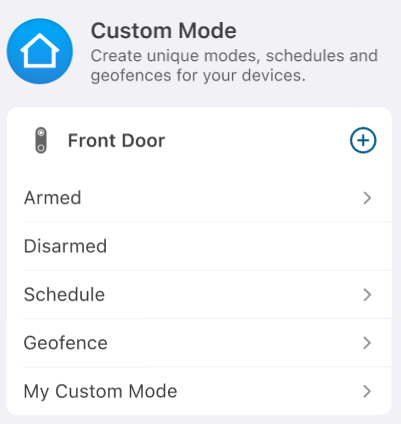
- The Custom Mode you created is displayed under Geofence.
To set up a Custom Mode Schedule, visit: How to set up a Schedule when using Arlo Custom Mode
To set up a Custom Mode Geofence, visit: How to set up a Geofence when using Arlo Custom Mode
To edit your Custom Mode:
- Launch the Arlo Secure App.
- Tap Routines.
- Tap Custom Mode.
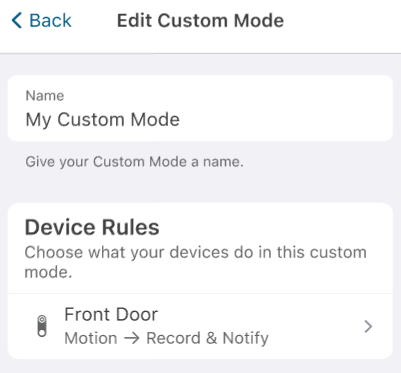
The Custom Mode Settings screen displays. - Tap the name of the Custom Mode you created (or tap Armed to edit the existing default mode).
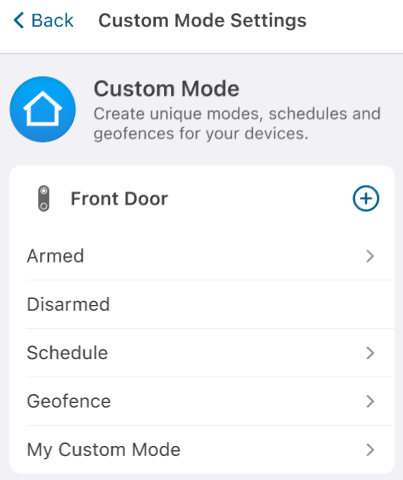
- The Edit Mode screen displays.