
The button on the top of your Arlo Essential Security Camera (3rd Gen) is the Pairing button. You can use the Pairing button for different purposes, depending on whether your camera is shut down or in normal operating mode.
When you first unbox your camera, it is shut down to reduce battery usage before installation. We recommend that you follow the instructions in the Arlo Secure App immediately after you first unbox your camera. These instructions show you how to wake up and install the camera.
Use the Pairing Button
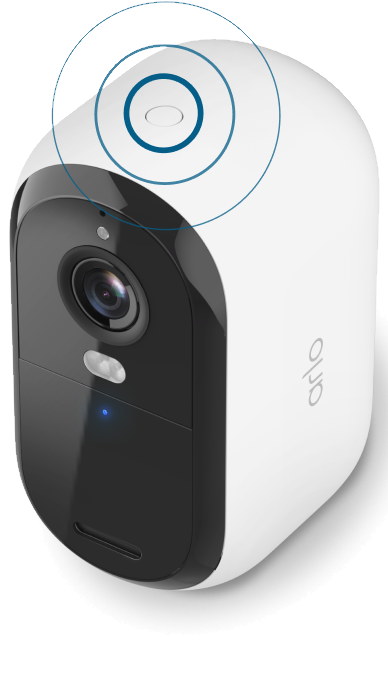
When the camera is shut down, pressing the Pairing button does the following:
Press and hold the button for 3 seconds. The camera wakes up and the LED flashes blue. Follow the instructions in the Arlo Secure App to add your Essential Security Camera (3rd Gen) to your account.
Note: If you do not add your Arlo camera to the Arlo Secure App within two minutes of pressing the Pairing button, the Pairing process times out, and the camera shuts down. You must press the Pairing button again to restart the Pairing process.Quick press. No change. The camera remains shut down.
Note: If the camera LED does not flash, no matter how long you press the Pairing button, the camera battery is likely at 0% charge. Recharge your camera and try pressing the button again.
When the camera is in normal operating mode, pressing the Pairing button does the following:
Press and hold the button for 3 seconds. The camera LED blinks blue slowly, and the camera Pairing process (pairing the BLE connection) starts. Follow the instructions in the Arlo Secure App to add your Essential Security Camera (3rd Gen) to your account.
Press and hold the button for 15 seconds. The camera LED blinks amber. Let go of the button once the LED blinks amber, and the camera factory resets.
Note: The camera’s USB charging cable must be disconnected for this to work.